Install APKs
Build APKs with your project's normal Gradle/React Native workflow; MoTA does not invoke builds. It discovers APKs in the workspace, including android/app/build/outputs/apk (see mota.apkGlob).
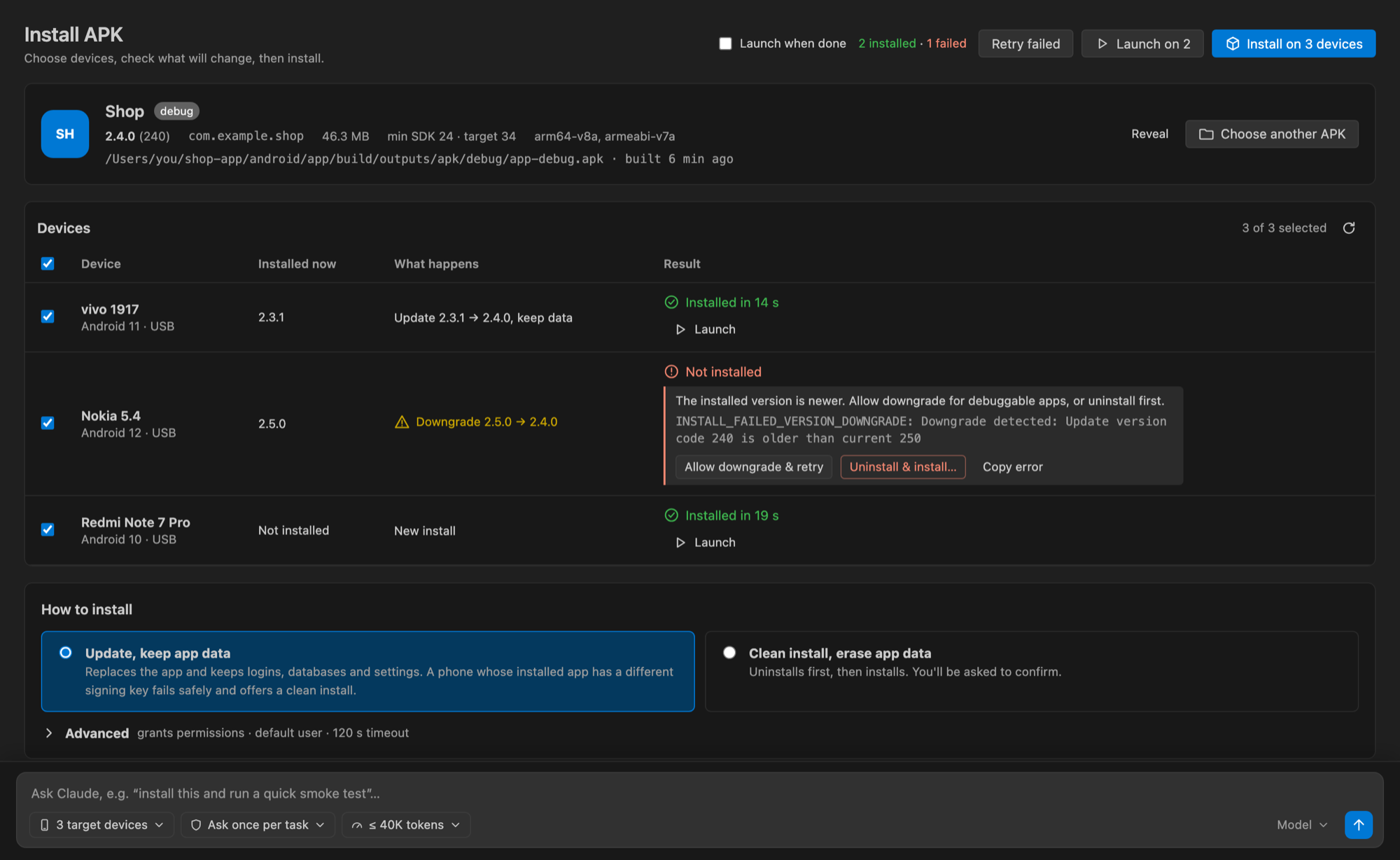
Install on several devices
Click an APK to choose one or more ready devices, or run MoTA: Install APK on Devices to browse for one. Choose Editor page (the default) for per-device progress and recovery, or Notification for compact progress with an Open install page action.
Review install options before starting:
- replace while keeping data
- allow test APKs
- permit downgrades for debuggable apps
- grant runtime permissions
- Android user ID
- a 10–600 second timeout
Options are remembered per workspace. Retry runs only on devices that have not succeeded; failures offer tailored guidance, reconnect and ADB settings actions. Standalone APKs are supported; split APK sets and AAB bundles are not.
Debug/release replacement
The install page includes Update existing app · keep data and Switch debug / release APK presets. Switching enables replace, test APK and downgrade options; Android still checks signing keys and restricts downgrades of release apps.
Blocked installs
When an install fails, each affected device offers relevant actions:
- Replace existing app & retry
- Allow downgrade & retry
- Allow test APK & retry
- Uninstall conflicting app & reinstall
Successful devices are left alone during targeted retries. Choose another APK opens a new installation flow.
Clean reinstall
Clean reinstall on selected devices is available before an install. MoTA reads the application ID with SDK build tools (aapt / aapt2) when available. Otherwise, enter and verify the package ID; a signature failure can supply the conflicting package ID. A confirmation page lists the exact package and devices and requires acknowledgement of data deletion. It then runs uninstall followed by install.
Warning
Clean uninstall applies to all Android users on the targeted device and deletes local app data; selecting an install user does not narrow uninstall scope.
Cancellation makes no device changes. Uninstall failure stops that device before installation; if installation fails after removal, the old app stays removed. MoTA never automatically uninstalls just because installation failed.